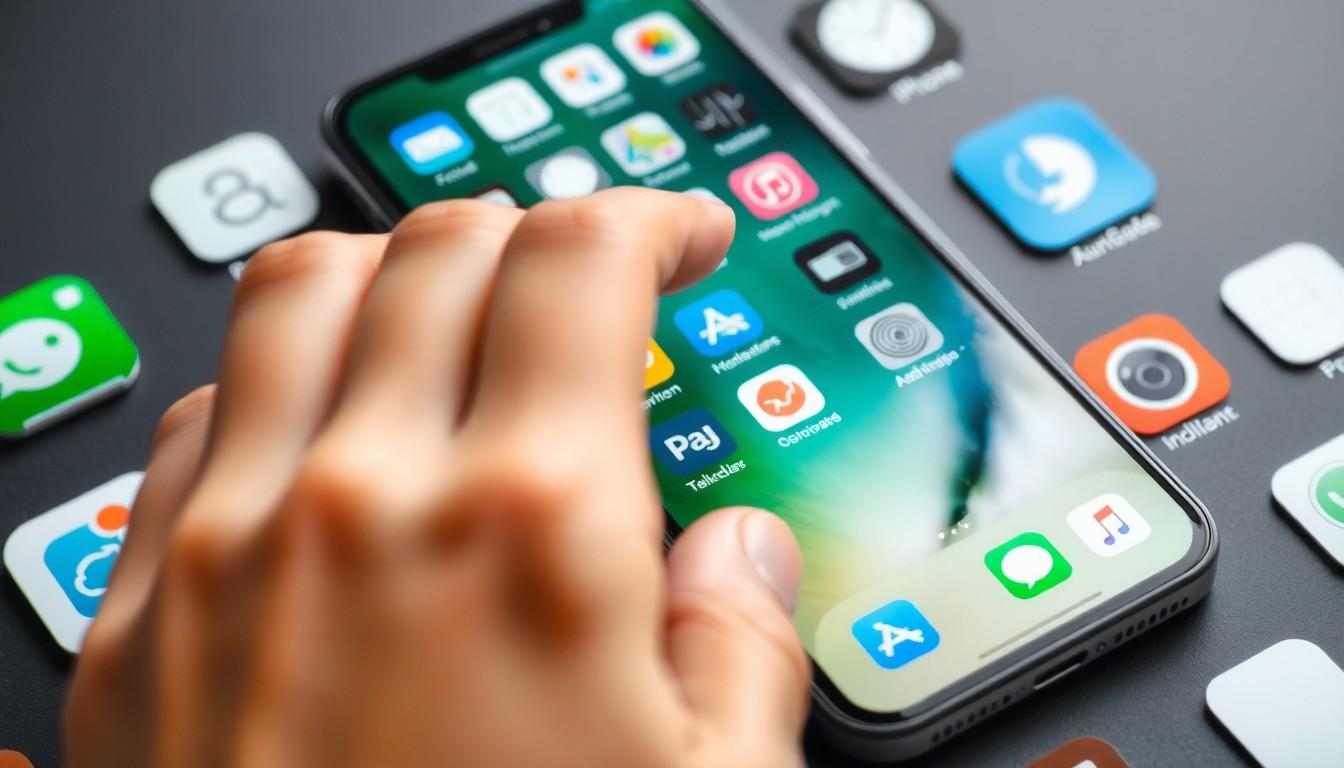
In a world where privacy is gold and cluttered screens are the enemy, the quest to hide apps on an iPhone is more relevant than ever. Whether it’s that embarrassing game you can’t stop playing or a rarely-used app that’s cramping your style, knowing how to conceal them can transform your device from a chaotic mess into a sleek masterpiece.
Imagine swiping through your home screen and feeling the sweet satisfaction of a clean layout. No more judgmental glances or accidental taps! With a few clever tricks, you can keep your secrets safe while maintaining that polished look. So, if you’re ready to reclaim your screen real estate and keep your app habits under wraps, let’s dive into the delightful world of app hiding on your iPhone.
Overview of Hiding Apps on iPhone
Hiding apps on an iPhone provides a simple way to maintain privacy and a streamlined interface. Users may want to conceal specific applications due to personal preferences or to reduce distractions. Several methods exist for achieving this goal, each offering unique advantages.
Using the app library simplifies organization. It automatically categorizes apps upon installation and allows access without cluttering the home screen. Users can swipe left to reveal the library, ensuring minimal visibility of rarely-used apps.
Creating folders presents another effective method. Users can group similar apps together, making them less noticeable. To create a folder, a user simply drags one app over another, and both applications become housed in a single icon.
Additionally, employing Screen Time restrictions offers control over app visibility. By accessing Settings, users can navigate to Screen Time, and restrict certain apps. This method keeps apps hidden while also preventing unauthorized access.
Utilizing a different home screen layout enhances privacy further. Users can hide an entire page of apps, allowing for a cleaner appearance. By tapping and holding on the home screen, they can enter jiggle mode, select the dots at the bottom, and uncheck specific pages.
Using these methods enables users to customize their iPhone and manage app visibility effectively. Prioritizing a clean, organized screen supports a more satisfying user experience and aligns with the goal of discreetly managing app habits.
Methods to Hide Apps on iPhone

Users can effectively manage app visibility on their iPhones through various methods. These techniques enhance privacy while maintaining an organized home screen.
Using App Library
The App Library automatically organizes apps into categories. Users can swipe left on their home screen to access this feature. Hidden apps can still be found here, so they remain functional without cluttering the main screen. It eliminates the need to display every app visibly, making everyday use more convenient. To find an app quickly, users can type its name in the search bar within the App Library.
Using Screen Time Settings
Screen Time restrictions provide a robust solution for managing app visibility. This feature allows users to set time limits on specific apps, effectively hiding them after a designated period. Accessing settings through “Screen Time” lets them choose which apps to restrict. Users can also utilize this option to prevent others from accessing certain apps, enhancing privacy. This approach gives greater control over app usage while keeping the home screen uncluttered.
Creating Folders
Creating folders serves as a straightforward method to hide multiple apps simultaneously. Users can press and hold an app icon until options appear, allowing them to drag one app onto another. This action results in the creation of a folder where similar apps can be grouped. By naming folders discreetly, users can make them less noticeable. Further, users can place less frequently used apps in these folders, thus reducing visual clutter on the home screen while still having easy access to them.
Third-Party Solutions
Several third-party applications enable users to hide apps on their iPhones, offering varying levels of discreetness.
App Hiders
App hiders provide a straightforward solution for concealing apps. Users can download dedicated apps like “AppHider” and “Hide It Pro,” which work by disguising their presence. These applications let users create a vault for hidden apps, requiring a password to access them. This protects sensitive information effectively. Many app hiders also offer additional features such as a fake crash option, making the app appear as though it is non-functional when accessed by others.
Using Shortcuts
Shortcuts feature provides a versatile way to customize app visibility on an iPhone. Users create shortcuts that redirect to apps, effectively masking their presence on the home screen. By setting a custom image for each shortcut, the original app’s icon can be hidden, enhancing discretion. This method not only hides an app but also personalizes the user experience. Setting up these shortcuts takes just a few minutes, enabling users to maintain an organized home screen effortlessly.
Security and Privacy Considerations
Hiding apps on an iPhone enhances both security and privacy. Users maintain discretion over their app habits, especially for embarrassing or sensitive applications. Employing methods like Screen Time restrictions can prevent unauthorized access, ensuring that only the user interacts with these hidden apps.
Users accessing the App Library find it a secure space since apps remain organized out of sight. Creating discreetly named folders also adds a layer of privacy while allowing easy access to grouped apps. Hiding entire pages of apps contributes to a cleaner interface and deters casual onlookers from scanning through visible apps.
Third-party applications designed for app hiding further bolster privacy. Tools like AppHider streamline the process by requiring access passwords, securing hidden apps from prying eyes. Some of these applications even feature options like a fake crash, masking their true function and promoting user discretion.
Custom shortcuts developed through the Shortcuts feature offer another angle for privacy. By creating shortcuts with personalized images, users effectively obscure app identities, disguising their presence on the home screen. This additional customization reinforces the user’s control over app visibility, making it easier to protect personal information.
Overall, prioritizing security and privacy through these methods allows users to selectively reveal or conceal app usage. Understanding these considerations plays a crucial role in enhancing the iPhone experience while maintaining a sense of personal safety.
Conclusion
Hiding apps on an iPhone is a practical way to enhance privacy and streamline the device’s appearance. With multiple methods available users can choose the approach that best fits their needs. Whether utilizing the App Library creating discreet folders or employing third-party applications each option offers unique benefits.
These strategies not only help maintain a clutter-free home screen but also allow users to control their app visibility. By prioritizing organization and privacy individuals can enjoy a more personalized iPhone experience. Embracing these techniques empowers users to manage their digital lives with confidence and discretion.